Inventory Reports
Inventory reports help users track stock quantity and valuation.
Before you start
- Confirm the stock movement or adjustment is posted.
- Confirm the item and location filters are correct.
- Confirm the user has access to inventory reporting.
- Confirm the valuation rules are set up.
Visual guide
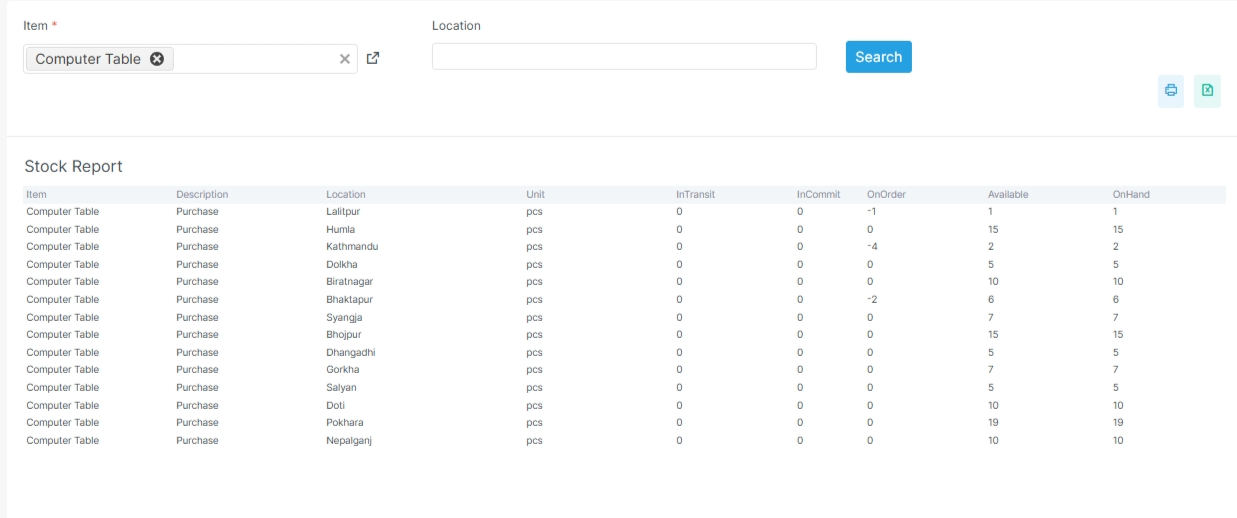
Stock reports are filter first
Start with the item, location, or date filter. Then review quantity, movement, and valuation in the table below.
What to notice in inventory reports
Filters are the starting point for stock review. On-hand and available quantities are usually read together. Movement and valuation reports answer different questions.
Common examples
- inventory valuation
- adjustment reports
- expiry reports
- batch and serial reports
- stock summary
- stock availability
- stock ledger
- reorder report
What these reports answer
- How much stock do we have?
- Where is the stock moving?
- What stock value sits in the books?
- Which items are ageing?
- Which items need reorder?
Real report names in the app
| Report | Purpose |
|---|---|
stock-report |
Stock ledger summary |
stock-detail |
Stock ledger detail |
inventory-ledger |
Inventory ledger |
inventory-valuation-summary |
Valuation summary |
inventory-valuation-detail |
Valuation detail |
inventory-valuation-report |
Valuation report |
valuation |
Inventory valuation view |
valuation-detail |
Inventory valuation detail view |
movement |
Stock movement view |
movement-detail |
Stock movement detail |
inventory-movement-summary |
Movement summary |
inventory-movement-detail |
Movement detail |
stock-availability |
Stock availability |
stock-summary |
Stock summary |
inventory-aging |
Inventory ageing |
adjustment |
Inventory adjustment report |
reorder-report |
Reorder report |
Notes
Some routes show a summary view. Some routes show a detail view. That gives the user both fast review and drilldown options.